How to Export Figma to Klaviyo: Complete Guide
Learn how to export Figma email designs to Klaviyo step by step. Understand image slicing, compression, and the best workflow for pixel-perfect e-commerce campaigns.
You've spent hours designing a beautiful e-commerce email in Figma. The typography is on point, the product images look crispy, and everything is perfectly aligned. Now you need to get it into Klaviyo — and that's where things get complicated.
If you've ever tried to export Figma to Klaviyo, you know the frustration: layouts break, colors shift in dark mode, Outlook mangles your CSS, and Gmail clips your carefully crafted content. This guide will walk you through the entire process — from the manual approach to automated workflows — so you can find the method that works best for your team.
The Manual Way: How to Export Figma Designs to Klaviyo Step by Step
Let's start with the basics. If you've never done this before, here's the straightforward (if somewhat tedious) way to move your Figma email design into Klaviyo:
- Finish your email design in Figma. Make sure everything is inside a single frame at the correct email width (600px is the standard).
- Slice directly in Figma. Use Figma's built-in Slice tool (shortcut:
S) to draw horizontal slices across your email frame. Place a slice at each logical break — between the header and body, between content sections, above the footer. Then select all slices and export them at once as PNG or JPG. - Compress each slice. Use a tool like TinyPNG or Squoosh to reduce file sizes. Aim for under 200KB per slice — this keeps loading times fast without visible quality loss.
- Upload to Klaviyo. In Klaviyo's email editor, add Image blocks and upload each slice in order from top to bottom. Add clickable links to each image where needed.
- Test and send. Preview across clients, check that links work, and schedule your campaign.
This process works. Millions of e-commerce emails are built this way every day. But it takes 15 to 30 minutes per campaign, and if you send multiple emails per week, that adds up fast. We'll talk about faster alternatives later — but first, let's understand why slicing matters so much.
Why You Should Slice Your Email Images (Not Send One Big Image)
It might seem easier to export the entire email as a single image and drop it into Klaviyo. One image, one upload, done — right? Unfortunately, that approach creates several problems that can quietly sabotage your campaigns.

Send better Klaviyo campaigns in half the time
E-commerce teams use EmailSlicer to go from Figma design to Klaviyo-ready email in about 1 minute.
Gmail's Download Icon on Large Images
When Gmail detects an image that's too tall (roughly over 800px), it overlays a download icon on top of it. This download button covers your content, makes the email look broken, and gives your recipients a reason to ignore it entirely. By slicing your email into smaller sections, each slice stays under that threshold and Gmail displays them cleanly.
Gmail's 102KB HTML Clipping
Here's one that trips up a lot of email marketers: Gmail clips any email whose HTML exceeds 102KB. When that happens, Gmail shows a "View entire message" link at the bottom — and most people never click it. Your footer, your CTA, your unsubscribe link? Gone.
The good news: when you use image-based emails, the images themselves are hosted externally and don't count toward the 102KB limit. Your HTML is just a series of <img> tags and links, keeping the total well under the threshold.
Dark Mode Won't Ruin Your Design
Every email client handles dark mode differently. Apple Mail inverts backgrounds. Gmail changes text colors. Outlook does its own thing entirely. If your email is coded in HTML, dark mode can turn your white text invisible on a white-turned-dark background, or make your brand colors look completely wrong.
Image-based emails are immune to this. Since the content is baked into the image, there are no CSS colors for dark mode to override. What you designed is what your customer sees.
Microsoft Outlook Compatibility
Outlook renders HTML using Microsoft Word's engine. That means flexbox doesn't work, grid doesn't work, and most modern CSS properties are ignored. If you've ever spent hours debugging an email that looks perfect everywhere except Outlook, you know the pain. Image-based emails eliminate this entirely — they render the same in every client.
What Sliced Emails Look Like in Practice
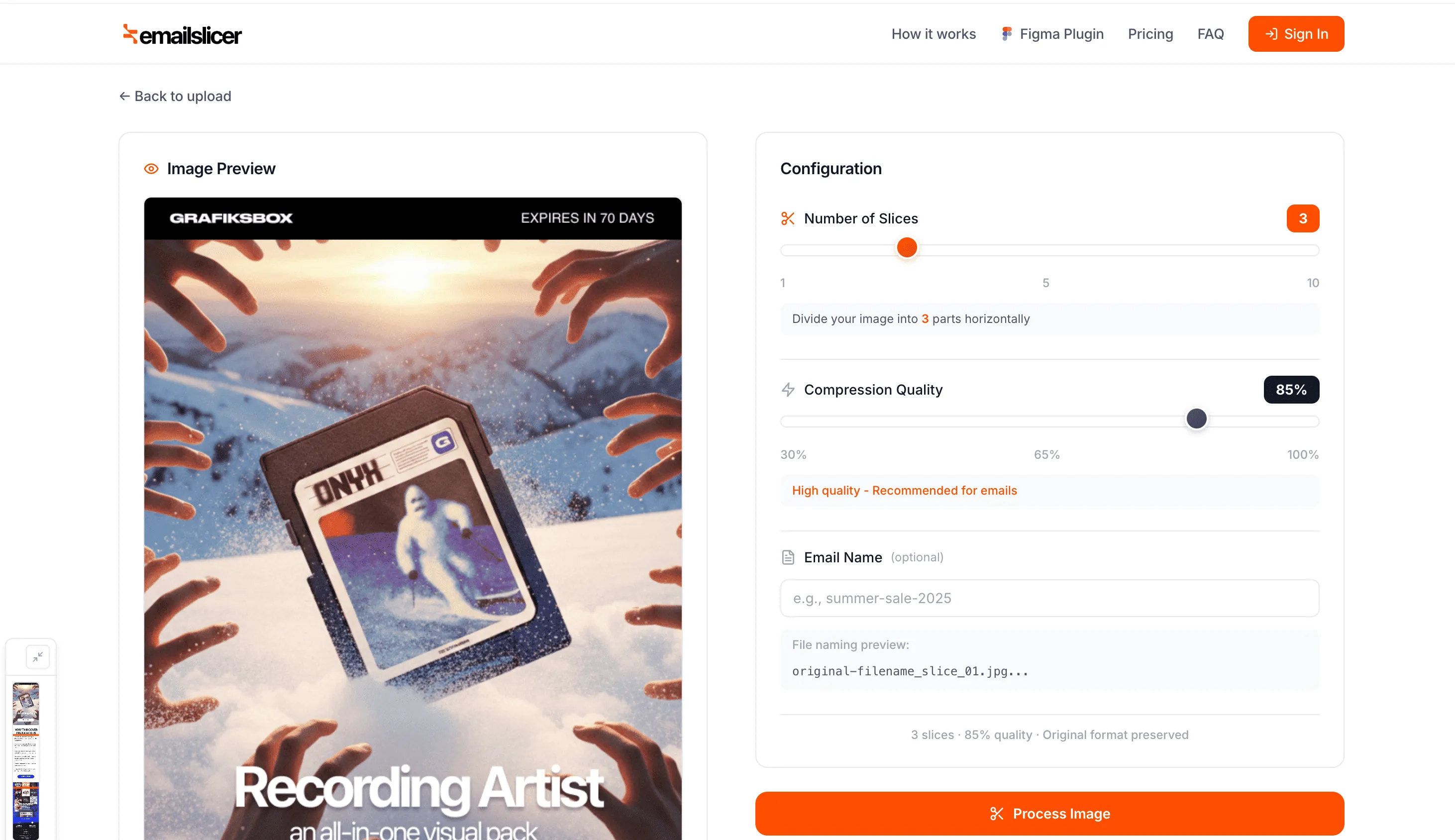
To make this concrete, here's what the slicing process looks like. You take a full email design and divide it into logical horizontal sections:
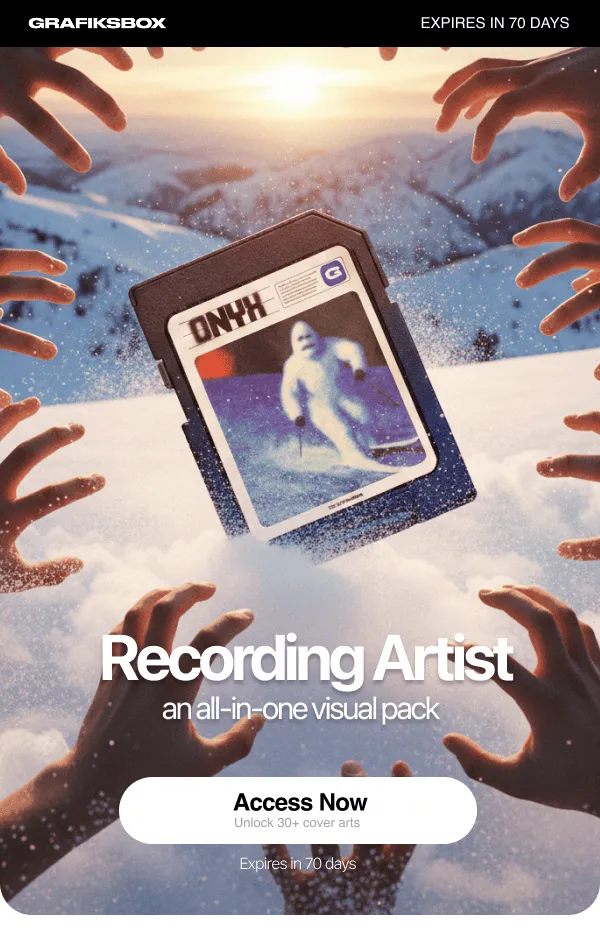
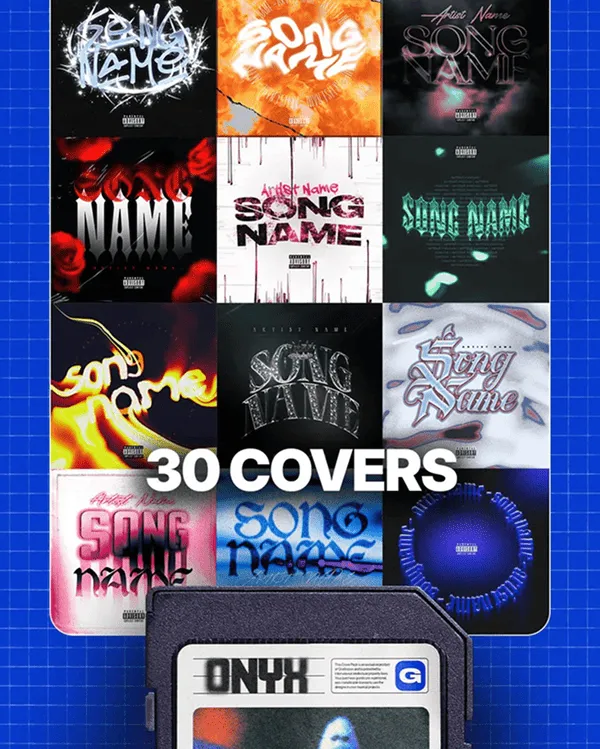
Each slice becomes its own image in Klaviyo. You stack them vertically, add clickable links to each one, and the recipient sees a seamless email — no gaps, no broken layouts, just your original design rendered pixel-for-pixel.
HTML-Coded vs Image-Based Emails: The E-commerce Perspective
There's an ongoing debate in the email marketing world: should you code emails in HTML or send them as sliced images? The answer depends on your priorities.
HTML-coded emails are great for text-heavy content like newsletters, transactional emails, or anything that needs to be fully accessible. Tools like Figma-to-HTML plugins (like Emailify) can convert your design into HTML code. However, you'll still face rendering inconsistencies across clients — especially Outlook and dark mode.
Image-based emails are ideal for e-commerce campaigns where visual design is the priority: product launches, sales announcements, branded campaigns, seasonal promotions. Every major e-commerce brand — from Nike to Zara to hundreds of Shopify stores — sends image-based emails for their marketing campaigns.
The best approach? Use both. Image-based for your high-design marketing campaigns, HTML-coded for transactional emails and plain-text newsletters. Most e-commerce teams find that 70-80% of their campaigns benefit from the image-based approach.
"Won't Image Emails Go to Spam?" — Debunking the Myth
This is probably the most common concern, and it's worth addressing directly.
The idea that image-heavy emails automatically hurt deliverability is outdated. Modern email deliverability depends on:
- Sender reputation — your domain authentication (SPF, DKIM, DMARC), engagement rates, and list hygiene
- Recipient engagement — whether people open, click, and interact with your emails
- List quality — sending to people who actually want to hear from you
The image-to-text ratio myth comes from the early 2000s when spam filters were primitive. Today's spam filters use machine learning and behavioral signals — they care about whether your recipients engage with your emails, not whether you used images.
That said, best practices still apply: include alt text on every image (for accessibility and as fallback when images don't load), add a text preheader, and keep your sending domain properly authenticated. If you have more questions about deliverability and email best practices, check our FAQ page for quick answers.
Speeding Up the Figma to Klaviyo Workflow
The manual method works, but doing it for every campaign gets old fast. Here are some ways to speed things up when you export Figma to Klaviyo:
Option 1: Figma Plugins
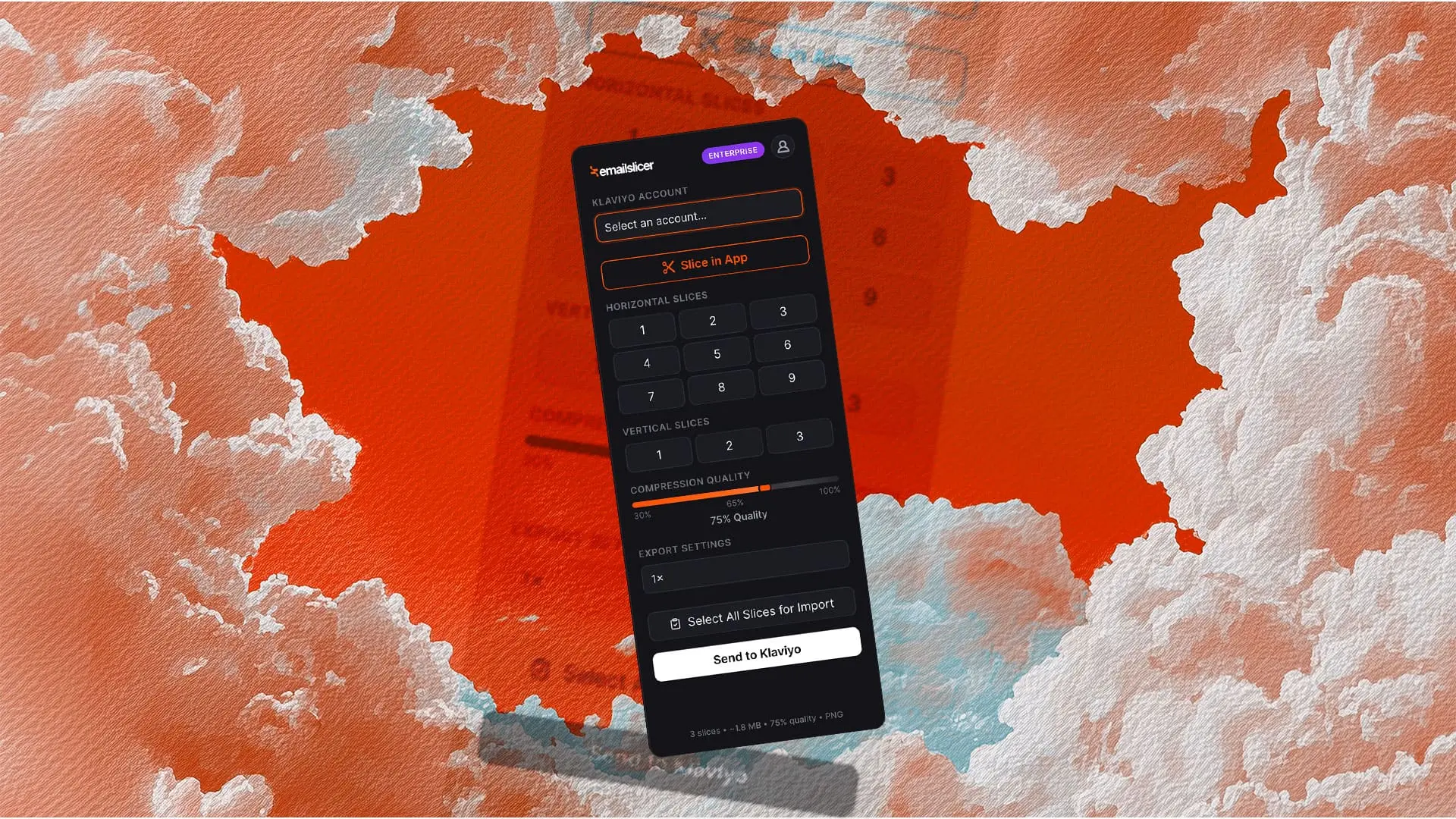
Several Figma plugins can help automate parts of this workflow. Some convert designs to HTML (like Emailify), while others — like the EmailSlicer Figma plugin — handle the slicing, compression, and Klaviyo import directly from within Figma. The advantage of staying inside Figma is that you skip the export-resize-upload cycle entirely.
Option 2: Web-Based Slicing Tools
If your design doesn't come from Figma — maybe a freelancer sends you a flat image, or you use another design tool — web-based slicers let you upload any image, set your slice points, compress, and either download the sections or push them to Klaviyo via API. You can compare available plans to find the right fit for your team's volume.
Option 3: Build Your Own Pipeline
If you're technically inclined, you can build a custom pipeline using Sharp (Node.js image library) or Python's Pillow to automate slicing and compression, then use Klaviyo's API to upload the images programmatically. This is overkill for most teams, but it's an option if you have very specific requirements.
The Workflow at a Glance

Regardless of which method you choose, the core workflow to export Figma to Klaviyo is the same: design your email, slice it into sections, compress for web performance, and import into Klaviyo. The only difference is how much of that process you do manually vs. with tools. We cover more email marketing strategies and workflow tips on our blog — worth bookmarking if you're optimizing your email production pipeline.
Frequently Asked Questions
Can I export directly from Figma to Klaviyo without any tools?
Not natively. Figma doesn't have a built-in Klaviyo integration. You'll need to export your design as an image first, then upload it to Klaviyo. The question is whether you do each step manually or use a plugin/tool to automate it.
What image format should I use for emails?
JPEG is best for photographs and complex visuals (smaller file sizes). PNG is better when you need transparency or have large areas of flat color. For most e-commerce emails with product photography, JPEG at 80-85% quality gives the best size-to-quality ratio.
How many slices should I use per email?
Typically 4 to 8 slices work well. The goal is to keep each image under ~800px tall (to avoid Gmail's download icon) while cutting at logical content boundaries — between the header and body, between product sections, above the footer. Each slice should correspond to a distinct clickable area if possible.
Will image-based emails affect loading speed?
Properly compressed slices actually load faster than a single large image. Email clients can load multiple smaller images in parallel, and compression can reduce total file size by 60-80% without visible quality loss. The key is compression — always compress before uploading to Klaviyo.
What about accessibility?
This is a legitimate trade-off. Image-based emails aren't accessible to screen readers the way HTML text is. To mitigate this, always add descriptive alt text to every image, include a "View in browser" link, and consider adding a plain-text version of your campaign in Klaviyo. For e-commerce promotional emails, most brands accept this trade-off in exchange for guaranteed visual consistency.
Your Shopify store deserves emails that actually convert
Pixel-perfect Klaviyo campaigns, every time — without the manual slicing grind. More time growing your store, less time fighting email builders.

Rubén P.
emailslicer.app